
TL;DR

Turn the school run and nap time into listening time
- Thousands of audiobooks, podcasts and originals
- Listen on your phone, tablet or Echo — also offline
- Cancel anytime
A baby monitor with Wi-Fi sends video or audio through your home internet network so you can check the nursery from a phone or tablet when you have internet access. Compare image quality, app reliability, security updates, and whether the monitor still works locally if your internet drops; choose age-appropriate equipment, follow the manufacturer’s instructions, and check CPSC recalls before buying.
A baby monitor can turn a quiet evening on the porch into a string of phone checks—or a calmer break, if the picture loads when you need it. A baby monitor with Wi-Fi connects to your home network and sends sound or video to an app, which can let you check in from another room or, when you have internet access, another location.
That convenience comes with tradeoffs. Your experience depends on Wi-Fi coverage, app quality, and account security, not just a camera’s advertised resolution. A crisp 4K feed is little help if the nursery signal drops or you cannot quickly mute an alert.
This guide explains what Wi-Fi monitors do, how they differ from local monitors, which features deserve your attention, and how to set one up thoughtfully. You’ll also find practical privacy and safety checks, including age-appropriate product use and checking the U.S. Consumer Product Safety Commission (CPSC) recall database before you buy.
A Wi-Fi monitor can provide remote viewing through your home internet network, while a typical local monitor works within its own range.
Test the app, alerts, night view, and sound from the places you actually use them before relying on the monitor.
Look for clear security information, unique-password support, account protections, and ongoing firmware updates.
Check subscription costs, local-mode behavior during internet outages, age-appropriateness, and CPSC recalls before buying.
Use monitors as viewing and listening tools, not as a substitute for supervision or pediatric guidance about infant sleep and health.
What a Wi-Fi baby monitor lets you do from your phone
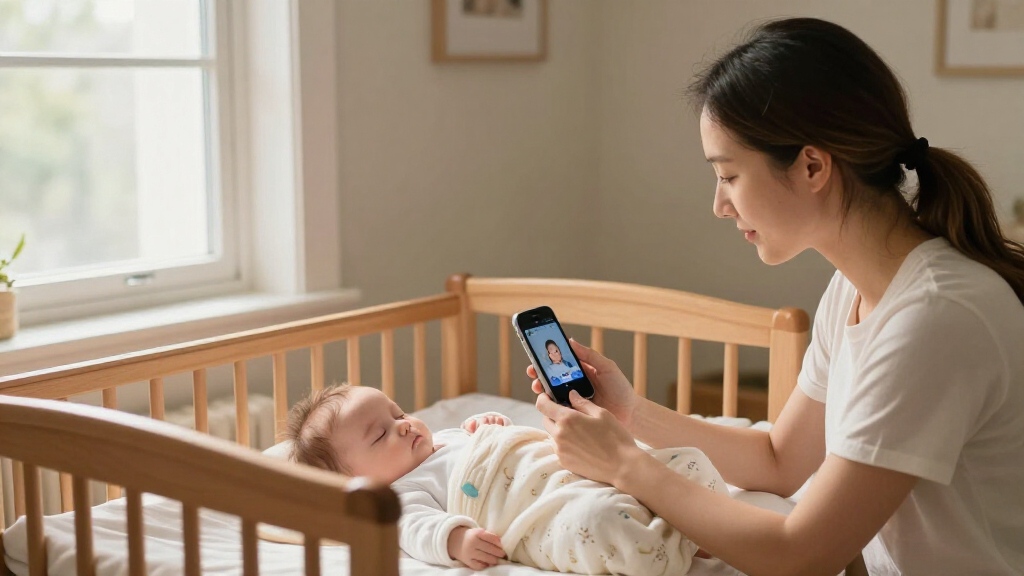
A baby monitor with Wi-Fi connects its camera or audio unit to your home internet network, then streams the feed to an app or compatible device. That can let you check the crib from the kitchen, a neighbor’s house, or another place with internet access, rather than staying within a dedicated receiver’s local range.
Think of it like a doorbell camera pointed at the nursery: the camera captures what is happening, your network carries the signal, and your phone displays it. The comparison has a limit, though—baby monitors are child products, so you should follow the product’s intended use and placement instructions rather than treating one as a general-purpose camera.
For example, you might open the app while folding laundry downstairs and see whether your baby is still asleep. If you are visiting family, remote access may let you check in over a separate internet connection. Neither feature replaces an adult’s supervision or pediatric guidance about infant sleep; a monitor reports what its sensors capture, not a medical assessment.
Some models add two-way audio, night vision, temperature readings, motion or sound alerts, and multiple-camera support. These extras can be useful, but they vary by model, app, and subscription plan. “Smart” features are not a guarantee of accuracy: treat sleep summaries or movement alerts as device-generated information, and ask your pediatrician about health or sleep concerns.
Remote access is the main distinction: a Wi-Fi monitor can reach your phone through an internet connection, while a typical non-Wi-Fi monitor works over its own local signal.
Wi-Fi baby monitor with remote access
As an affiliate, we earn on qualifying purchases.
As an affiliate, we earn on qualifying purchases.
Choose Wi-Fi or a local monitor based on your home
A Wi-Fi monitor suits you if you value app-based viewing away from home and have dependable internet; a local monitor can suit you better if you want a simpler system that does not rely on your home internet network. Neither type wins for every household. Your walls, routine, budget, and tolerance for app setup all matter.
Imagine two parents at bedtime. One wants to check the nursery while walking the dog around the block, so remote access is useful. The other mainly wants a dedicated screen on the kitchen counter and prefers a monitor that does not require an account or app. The second family may find a local system easier, even if it cannot send a feed across town.
| Feature | Wi-Fi monitor | Local monitor |
|---|---|---|
| Where you can view | Often from another location with internet access | Usually within the device’s local signal range |
| What it depends on | Camera, app, network, and sometimes cloud service | Camera and paired receiver or local connection |
| Typical tradeoff | More remote features, more setup and account security to manage | Simpler routine, limited range and fewer connected features |
| What to test | App behavior during weak or lost internet | Signal through your home’s walls and floors |
Ask what happens if your internet goes out. Some Wi-Fi models offer a local-only mode, but others depend on internet or a cloud service for key functions; check the manual rather than assuming. A monitor that keeps a useful local connection during an outage may fit a rural home or an older building with spotty service better than one that only works reliably beside the router.
Pick features that solve a real nursery problem
Choose features around how you will use the monitor, not the longest list on the box. Clear night vision, understandable alerts, dependable audio, and a stable app often matter more in daily use than a headline feature such as 4K video or AI sleep tracking. The practical question is whether a feature helps you notice and interpret something you need to respond to, without adding confusion or cost.
Start with the room itself. If the crib is across a dim nursery, night vision may be more useful than extra sharpness in daylight because you are likely to use the monitor after lights-out. If you prepare bottles or work in another room, two-way audio can help you speak through the monitor—but it does not replace going to the baby when care is needed. Also consider whether audio is easy to hear over ordinary household noise; a feature that works only in a quiet room may not serve your routine.
Some newer products advertise 1080p HD or 4K video, crying or movement detection, sleep summaries, voice-assistant links, and multiple cameras. Resolution matters only if it makes the view clearer on your screen under real nursery conditions; a higher-resolution stream may also use more bandwidth, which can aggravate a weak connection. A second camera can help if you have more than one child or want to view different spaces, but confirm how the app handles switching and whether extra cameras cost more. AI alerts may reduce routine checking for some families, but missed sounds or false alarms can create either false confidence or alert fatigue. Treat sleep summaries and movement notifications as device estimates, not a complete account of your baby’s condition.
For a practical test, imagine a Tuesday night: your phone is charging in the living room, the nursery is dark, and you need to hear a faint cry. Can you open the app quickly? Can you hear the audio clearly without turning the volume painfully high? Try the actual app and alert controls during the return period, rather than relying only on a product-page feature list. This reveals whether a feature is genuinely convenient or simply another setting you have to manage.
- Prioritize: reliable connection, clear night view, usable sound, and simple controls.
- Check: whether temperature readings, recordings, or smart features need a paid plan, and what you lose if you do not subscribe.
- Skip or delay: features you do not expect to use, especially if they add cost, bandwidth demands, or account complexity.
Secure the camera before you start checking in
Protect a Wi-Fi monitor by choosing a reputable brand, setting a unique password, enabling available security protections, and installing firmware updates. Because the device sends data over the internet, account security and update support deserve attention alongside picture quality. Security matters not just because a camera may contain sensitive video, but because remote access depends on an account and software that need continued protection.
When comparing models, look for clear information about encryption, two-factor authentication, software updates, and how the company handles video or audio. Encryption helps protect data as it travels or is stored, while two-factor authentication makes it harder for someone who gets your password to sign in. End-to-end encryption, where offered, can limit who can access a stream, but do not assume every feature or storage option uses the same protection. Read the privacy details in plain language, especially if the app stores clips in the cloud: storage may make playback convenient, but it also means understanding retention, access, and deletion policies.
Here is a realistic setup example: you install the camera, use the same password as an old shopping account, and leave automatic updates off. If that reused password is exposed elsewhere, someone may try it on the monitor account; outdated software can also miss later security fixes. Instead, create a long, unique password in a password manager, turn on two-factor authentication if available, update the app and camera, and secure your router with its own strong password. Avoid sharing the login widely; use separate household accounts if the product supports them so access can be removed without changing everyone’s credentials.
Security is ongoing, not a one-time checkbox. Check periodically for app and firmware updates, and review who has access when caregivers or family members stop using the account. Consider whether the manufacturer explains how long it supports the product, since support affects whether discovered software issues can be addressed. If the manufacturer no longer supports the device, or cannot explain its privacy practices, weigh that against the convenience of keeping it connected.
A connected camera needs care after installation: strong passwords reduce account risk, while timely updates help address software problems as they are found.
Set up the monitor so it works when you need it
Set up the monitor by testing the connection in the exact places you plan to use it, securing the account, and following the manufacturer’s placement and power instructions. A successful setup is not just a live picture beside the router; it is a feed and alert you can actually use from your usual spot. Testing matters because walls, floors, doors, and competing devices can weaken the signal, and a problem you discover before relying on the monitor is easier to address.
- Check the product first. Confirm it suits your child’s age and the intended use, read the manual, and search the CPSC recall database for the model name. Keep packaging and model information so you can identify it later.
- Place the camera as directed. Follow the manufacturer’s instructions for mounting, cords, power, and distance from the sleep space. Keep cords and equipment out of a child’s reach, and do not improvise a mount that could fall.
- Connect and secure it. Use the official app, install updates, set a unique password, and enable extra account protection where offered.
- Test your real routine. Check video and sound from the bedroom, kitchen, and any other location you use. Test notifications with the phone locked and the app closed; otherwise, an alert that appears only while the app is open may give you a misleading sense of coverage.
- Plan for outages. Learn whether the device offers local viewing, what alerts stop when internet fails, and how you will check on your baby without the app.
For instance, a monitor may look perfect in the nursery but lose its signal when you close the hallway door. Try it at bedtime and during a normal household evening, when a microwave, streaming video, and other devices may share the network. If the feed stutters, try a permitted placement change or improve coverage rather than assuming the camera itself is faulty. If you cannot make the connection dependable, that is useful information for deciding whether a local monitor would better fit your home.
Infant sleep and feeding decisions should follow your pediatrician’s guidance and current safe-sleep advice, not a monitor’s score or sensor. A monitor can help you hear or see; it cannot make an unsafe sleep setup safe. Check CPSC recalls before purchase and again if you hear about a product issue.
Budget for the whole system, not just the camera
Wi-Fi baby monitors range from budget models around $50 to premium options costing $200 or more, based on the supplied market information. The price alone does not tell you whether a monitor will suit your home: app support, cloud storage, extra cameras, and subscription fees can change the real cost. Think of the purchase as a system rather than a single camera, because the app and services may determine which functions remain available over time.
Picture two options on a store shelf. The cheaper camera offers live viewing and basic alerts, while the pricier one adds cloud clips, a second camera option, and sleep summaries. If you only need a reliable night view on one phone, the extra features may not justify the difference. If caregivers need separate logins or you want multiple camera views, those extras may solve an actual problem. The right comparison is not simply “more features for more money,” but whether the added cost buys something you will use and whether that feature remains available without ongoing payments.
Before buying, check whether the app is free, which features require a subscription, how long recordings remain available, and whether the device still provides basic monitoring without a paid plan. Also check if the monitor supports multiple phones or tablets, and whether sharing requires giving another person your account password. These details matter more after the first week, when the novelty of extra graphs wears off and you settle into a routine. A recurring fee can also add up over the years, so compare the likely total cost rather than the camera’s shelf price alone.
Product versions and services change, so treat prices and advertised capabilities as a starting point, not a promise that every model includes them. Read current manufacturer specifications and recent user feedback, paying particular attention to connection stability and app updates. A simpler monitor with dependable support can be a better buy than a feature-packed model whose useful functions sit behind recurring fees. Before committing, consider what you would still have if a subscription ended or the company changed its service; that helps clarify whether the purchase fits your budget and needs long term.
Frequently Asked Questions
Are Wi-Fi baby monitors secure?
They can be used more securely when you choose a reputable brand, use a unique password, enable available account protections, and install updates. Check the manufacturer’s encryption and privacy information, since features and cloud storage practices differ by model.
Can I use a Wi-Fi baby monitor without Wi-Fi?
Many Wi-Fi models rely on an internet connection for app access, but some offer a local-only mode or another connection method. Read the manual for the specific model and test what still works during an outage rather than assuming the camera will keep streaming.
What should I look for in a Wi-Fi baby monitor?
Start with stable connectivity, clear night vision, understandable sound, a reliable app, and transparent security and update policies. Then decide whether features such as two-way audio, extra cameras, temperature readings, or cloud clips fit your routine and budget.
Is a Wi-Fi baby monitor reliable if my internet is weak?
Reliability depends on the camera, app, and strength of your connection where the camera sits. Test the monitor with doors closed and from your usual viewing locations; a weak nursery signal can cause delays or dropped video even when the router works elsewhere.
Are Wi-Fi baby monitors safe for infants?
Use the monitor according to its age rating and manufacturer instructions, including directions for mounting, cords, and power. A monitor does not replace adult supervision or pediatric guidance about sleep and health, and you should check the CPSC recall database for the product.
Do I need a 4K baby monitor?
Not necessarily. A clear, stable night view and dependable audio may matter more for everyday use than 4K resolution, especially if your internet connection or phone screen limits the benefit. Compare the actual image in a dark room and consider whether higher resolution adds cost or data use without helping you see what you need.
Conclusion
Choose a Wi-Fi baby monitor for the parts of your routine it can genuinely improve: a clear view, useful alerts, and remote access that works in your home. Before you buy, check the app, privacy protections, outage behavior, age-appropriate use, and CPSC recall status.
Then test it where life happens—not just beside the router. The best monitor is the one that quietly does its job while you enjoy a warm cup of tea without staring at a spinning loading icon.
Halloween Picks
halloween
As an affiliate, we earn on qualifying purchases.